Effortlessly Connect Your NeoDeck to Powered Speakers: A Step-by-Step Guide
Learn how to seamlessly connect your NeoDeck to powered speakers with our easy-to-follow guide.
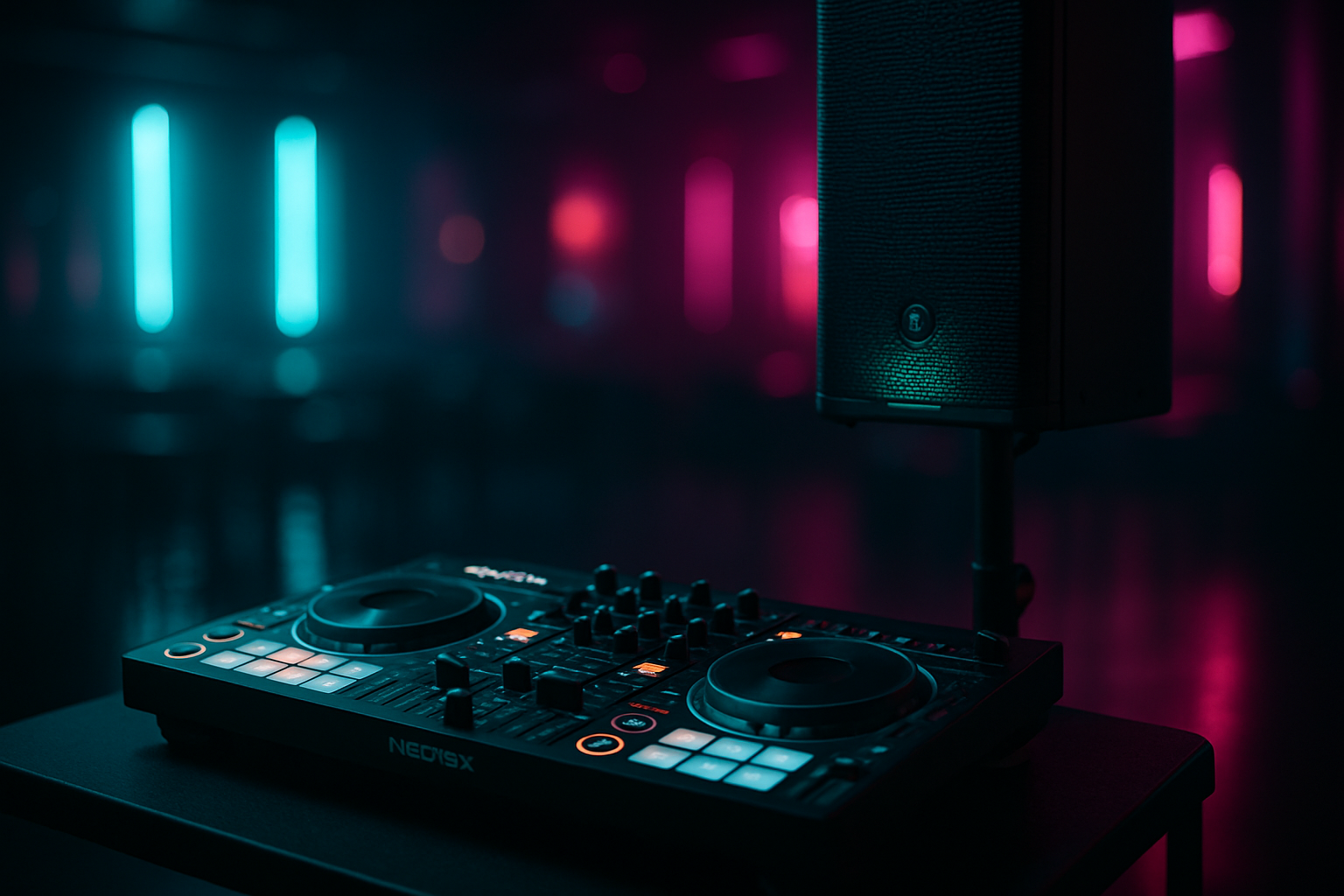
Getting Started: Unpacking Your NeoDeck
The NeoDeck is designed to simplify the DJ experience by eliminating the need for bulky laptops in the booth. With its compact design and quick booting system, the NeoDeck is perfect for DJs who want reliability and efficiency without compromise. Before you start connecting it to your powered speakers, make sure that you have everything you need to set up your NeoDeck correctly.
- Ensure your NeoDeck is fully charged or connected to a power source via USB-C.
- Power on your NeoDeck by tapping the power button located on the side.
- Wait for the system to boot up, which takes under 8 seconds.
Understanding the Audio Interface
The NeoDeck comes with a built-in professional audio interface that features dual stereo outputs. This means you have separate channels for both Master and Booth/Monitor outputs, allowing you greater flexibility and control.
Here's a quick breakdown of what each output serves:
- Master Output: Connect this to your main powered speaker for the audience to hear.
- Booth/Monitor Output: Use this for your personal monitor or booth speakers, ensuring you can hear your mix clearly.
Connecting NeoDeck to Powered Speakers
Follow these steps to connect your NeoDeck to powered speakers seamlessly.
- Gather Your Cables: Most powered speakers will require either XLR or 1/4" TRS cables. Ensure you have the appropriate cables for your setup.
- Connect the Outputs: Using the appropriate cable, connect the Master Output on the NeoDeck to the input on your powered speaker. If you're using a monitor, do the same with the Booth/Monitor Output.
- Turn On Your Speakers: Power up your speakers after all connections are secure to avoid any unwanted noise or damage.
- Adjust Sound Levels: Use the touchscreen interface on the NeoDeck to adjust the master volume levels, ensuring the sound is clear and balanced.
Fine-Tuning Your Setup
Once your NeoDeck is connected to your powered speakers, it's time to fine-tune your setup for optimal performance.
- Check Audio Levels: Use the NeoDeck's interface to ensure your audio levels are set appropriately to avoid distortion.
- Position Speakers Correctly: Ensure your powered speakers are positioned at an optimal height and angle for the best sound distribution.
- Use EQ Settings: Take advantage of the EQ settings within your DJ software on the NeoDeck to tailor the sound to your environment.
Troubleshooting Common Issues
If you encounter any issues, here are some quick solutions:
- No Sound: Check all cable connections and ensure your NeoDeck's volume is not muted.
- Sound Distortion: Lower the output volume and adjust the EQ settings to balance the sound.
- Feedback Noise: Reposition your speakers and reduce the volume of the Booth/Monitor Output.
Maximizing the Benefits of Your NeoDeck
The NeoDeck is designed to be an all-in-one solution for DJs. Here are some tips to maximize its benefits:
- Utilize the Touchscreen: The 10" IPS touchscreen makes navigating your DJ software intuitive and efficient.
- Take Advantage of the Quick Boot: With a boot time of under 8 seconds, you can get your set started almost instantly.
- Experiment with Software: The NeoDeck comes pre-loaded with DJ software, offering a variety of features to explore and enhance your mixes.
Ready to upgrade your DJ setup?
Join thousands of DJs on the waitlist for NeoDeck — the purpose-built DJ computer.
Get Early Access