Effortlessly Transfer Your DJ Music Library to NeoDeck
Learn how to seamlessly import your DJ music library to NeoDeck with this step-by-step guide.
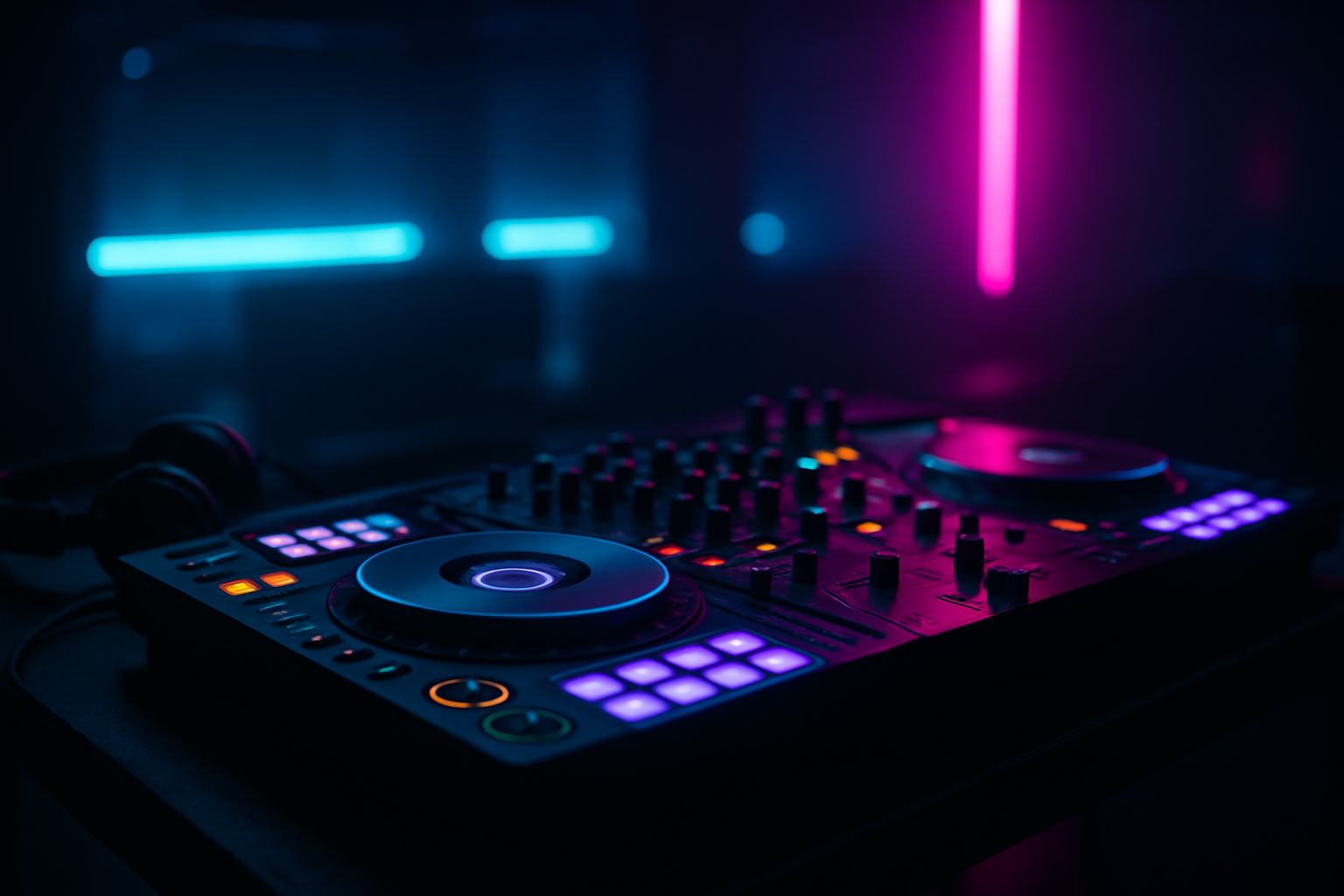
As a DJ, your music library is your most valuable asset. The NeoDeck, with its ultra-compact and powerful design, is the perfect tool for taking your performances to the next level. Importing your music library to the NeoDeck is a straightforward process that ensures your tracks are ready to mix and perform. In this guide, we'll walk you through the steps to seamlessly transfer your music library to NeoDeck, so you can focus on what you do best—creating unforgettable musical experiences.
Prepare Your Music Library
Before transferring your music library to the NeoDeck, it's essential to ensure that your files are organized and tagged correctly. This preparation will save you time and effort later on.
- Organize Your Files: Group your tracks into folders based on genre, BPM, or any other categorization that suits your workflow.
- Tag Your Tracks: Use software like MP3Tag or MusicBrainz Picard to ensure all your tracks have consistent metadata, including artist, title, album, and genre.
- Check File Formats: Ensure your music files are in a supported format such as MP3, WAV, or FLAC for optimal compatibility with NeoDeck's DJ software.
Connect and Transfer Your Library
With your music library prepared, the next step is to transfer it to the NeoDeck system. Here's how:
- Connect External Storage: Use a USB-C external hard drive or flash drive containing your music library. Connect it to the NeoDeck using the USB-C port.
- Access NeoDeck's File Manager: Once the external drive is connected, navigate to the NeoDeck's file manager via the touchscreen display.
- Transfer Files: Copy and paste your music library from the external storage to the internal storage of the NeoDeck. This ensures quick access to your tracks while performing.
Import Library into DJ Software
NeoDeck comes pre-loaded with DJ software, making it seamless to import your music library:
- Launch the DJ Software: Upon booting up NeoDeck, the DJ software will automatically load, thanks to its custom Linux-based real-time OS.
- Import Your Music: Use the import function within the DJ software to scan and add your newly transferred tracks into the software's library.
- Create Playlists: Organize your imported tracks into playlists for easy access during performances. Consider creating playlists by event type or set list.
Optimize Performance Settings
To ensure optimal performance, adjust the settings within your DJ software on NeoDeck:
- Set Audio Preferences: Configure the built-in professional audio interface settings for dual stereo outputs, ensuring proper routing for Master and Booth/Monitor outputs.
- Adjust Buffer Size: Lower the buffer size in the software settings to reduce latency, ensuring smooth and responsive playback.
- Analyze Your Tracks: Use the software's analysis feature to detect beat grids and BPMs, allowing for precise mixing and beatmatching.
Troubleshooting Common Issues
Should you encounter issues during the transfer or import process, consider these troubleshooting tips:
- Check Connections: Ensure your external storage is securely connected to the NeoDeck via USB-C.
- Verify File Format Compatibility: Double-check that all transferred files are in a supported format.
- Reanalyze Tracks: If tracks aren't displaying correctly in the software, try reimporting or reanalyzing them.
Final Thoughts on Using NeoDeck
With these steps, your music library will be efficiently transferred and fully functional on your NeoDeck. This streamlined process, combined with NeoDeck's robust hardware and software capabilities, empowers you to deliver outstanding performances without the hassle of traditional laptop setups. As you become more familiar with NeoDeck, you'll appreciate its ultra-fast boot times, intuitive touchscreen interface, and seamless integration with major DJ controllers. Embrace this cutting-edge technology and unlock new creative possibilities at your fingertips.
Ready to upgrade your DJ setup?
Join thousands of DJs on the waitlist for NeoDeck — the purpose-built DJ computer.
Get Early Access