Setting Up NeoDeck with Allen & Heath Xone Controllers: A Step-by-Step Guide
Learn how to seamlessly integrate your NeoDeck with Allen & Heath Xone controllers for a stellar DJ setup.
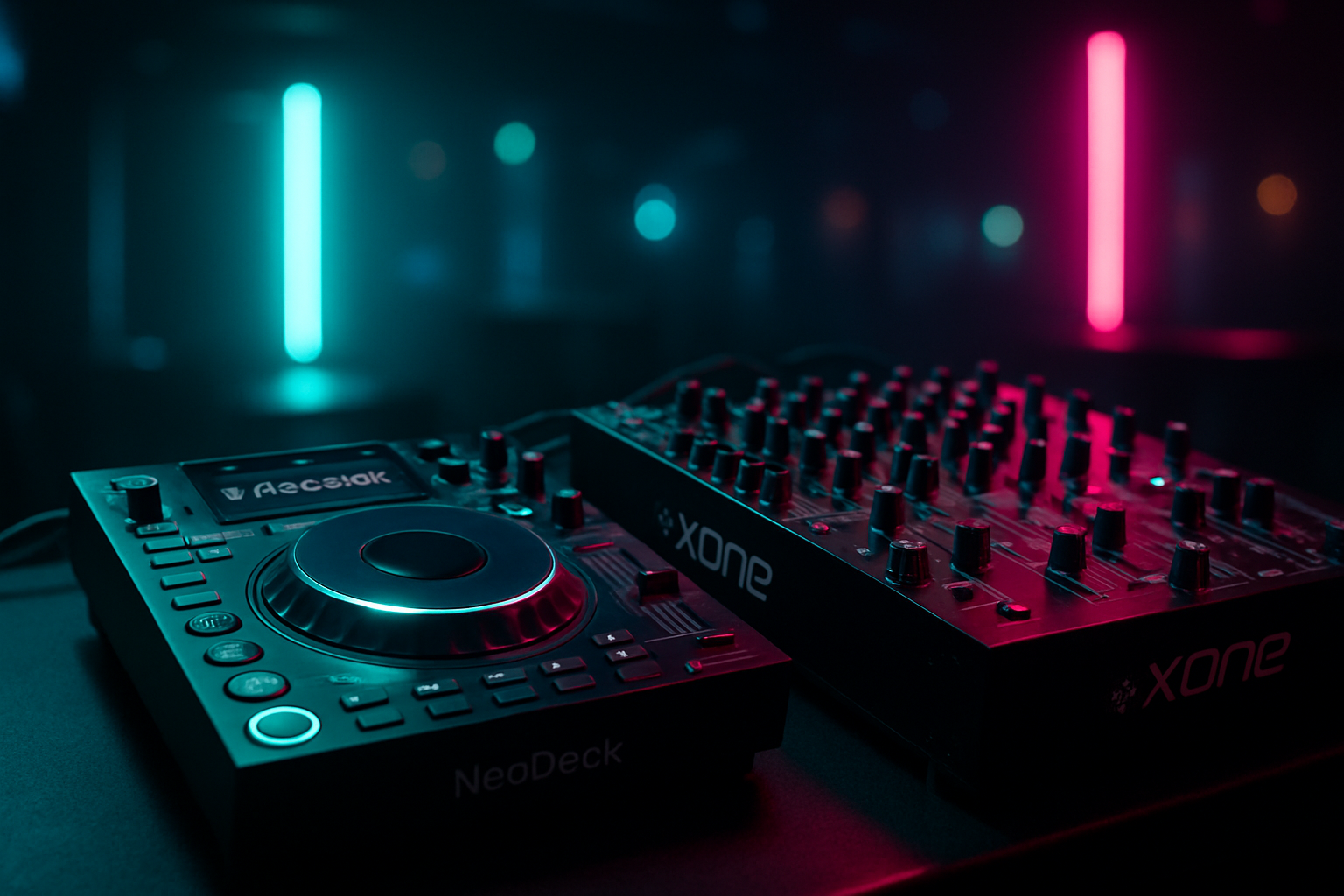
Introduction to NeoDeck and Allen & Heath Xone Controllers
The NeoDeck, an ultra-compact DJ computer, is designed to revolutionize your DJ booth experience. Combining the power of a fanless, passively cooled mini-computer with a 10" IPS touchscreen, NeoDeck offers DJs a streamlined solution for their performances. When paired with the robust Allen & Heath Xone series controllers, you can unlock unparalleled control and creativity in your sets. In this guide, we'll walk you through setting up your NeoDeck with Xone controllers to ensure a smooth and efficient integration.
Understanding the Core Components
Before diving into the setup, it's crucial to understand the primary components involved. NeoDeck is engineered with a pre-loaded DJ software suite on a custom Linux-based real-time OS, ensuring reliability and performance. With its built-in professional audio interface, featuring dual stereo outputs for both Master and Booth/Monitor, NeoDeck caters to various DJing needs. Pair it with Allen & Heath's Xone controllers, known for their superior sound quality and intuitive control layout, and you have a powerful combination.
Preparing Your Equipment
- Power Up Your NeoDeck: Start by powering up your NeoDeck. Its quick boot time of under 8 seconds gets you right into your DJ software, eliminating unnecessary waiting. Ensure you have the latest software updates installed for optimal performance.
- Set Up Your Xone Controller: Position your Xone controller in your DJ booth setup. Check all cables, ensuring they are intact and properly connected. Xone controllers typically require a USB connection to the computer, so make sure you have a reliable USB-C cable on hand.
Connecting NeoDeck to Xone Controllers
To connect your NeoDeck with the Xone controller, follow these simple steps:
- USB-C Connection: Use a USB-C to USB cable to connect the NeoDeck to your Xone controller. The NeoDeck's plug-and-play capability ensures seamless communication between the two devices.
- Configure Audio Settings: Access the audio settings in the DJ software. Select the NeoDeck's built-in audio interface as your main output device. This configuration will allow you to manage master and booth outputs effectively.
Optimizing DJ Software Settings
NeoDeck comes pre-loaded with DJ software that is optimized for performance. However, you can further customize settings to suit your style:
- Mapping Controls: Ensure that all knobs, faders, and buttons on your Xone controller are correctly mapped within the DJ software. Most modern controllers, including the Xone series, offer MIDI mapping capabilities for personalized control.
- Adjusting Latency: Fine-tune the latency settings to achieve real-time responsiveness. The NeoDeck's custom OS is designed for low-latency performance, but tweaking these settings can further enhance your experience.
Troubleshooting Common Issues
Even with a straightforward setup, you may encounter some issues. Here are common problems and their solutions:
- No Audio Output: Double-check all your audio connections and ensure that the NeoDeck's audio interface is selected in your software settings.
- Controller Not Recognized: If the Xone controller isn't recognized, try reconnecting the USB cable and restarting the NeoDeck. Check for any driver updates specific to your controller model.
Enhancing Your DJ Performance
With your NeoDeck and Xone controller set up, you can focus on enhancing your DJ performance. Experiment with different effects and transitions that leverage the tactile controls of the Xone series. The intuitive interface of the NeoDeck, paired with the Xone's precision, allows for creative freedom. Keep your setup updated, explore new techniques, and continuously refine your skills to stay ahead in the dynamic world of DJing.
Conclusion
Integrating the NeoDeck with Allen & Heath Xone controllers provides a robust and efficient DJ setup that can elevate your performances. By following this guide, you can ensure seamless compatibility and take full advantage of the features offered by both the NeoDeck and Xone series. Whether you're performing live or recording a mix, this combination delivers exceptional sound quality and control, making it a valuable addition to any DJ's toolkit. Stay updated with the latest from NeoDeck by visiting neodeck.store and prepare for a future of effortless DJing.
Ready to upgrade your DJ setup?
Join thousands of DJs on the waitlist for NeoDeck — the purpose-built DJ computer.
Get Early Access