Seamless Setup Guide for NeoDeck with Numark Mixtrack Controllers
Learn how to effortlessly set up your NeoDeck with Numark Mixtrack controllers for a flawless DJ experience.
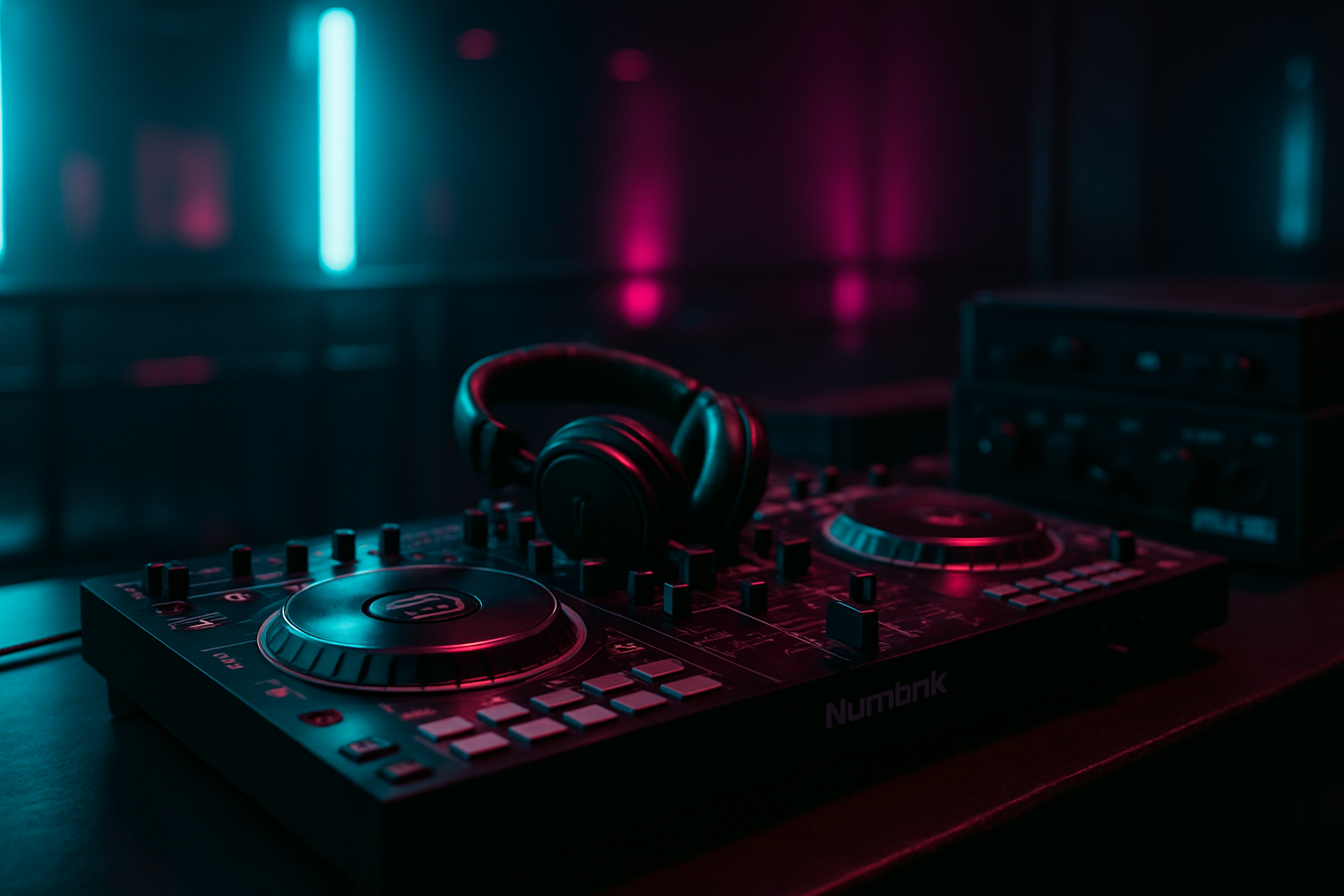
Introduction
Welcome to the definitive guide on setting up your NeoDeck with Numark Mixtrack controllers. Combining the ultra-compact and powerful NeoDeck with the reliable Numark Mixtrack series opens a world of possibilities for DJs who seek high performance without the bulk of traditional setups. Whether you're spinning records in the club or perfecting mixes at home, this guide ensures your setup is seamless, efficient, and ready to rock.
Unboxing and Initial Setup
When you first receive your NeoDeck, you'll notice its compact design and robust build. Begin by unboxing both your NeoDeck and Numark Mixtrack controller. Ensure that you have all the necessary components, including:
- NeoDeck unit
- Numark Mixtrack controller
- USB-C cable
- Power adapter for NeoDeck
- Audio cables for output connection
Place your NeoDeck on a stable, flat surface near your controller and audio equipment. This strategic positioning will help in connecting all elements easily.
Connecting NeoDeck to Numark Mixtrack
The NeoDeck is designed for hassle-free connectivity with all major DJ controllers, including the Numark Mixtrack series. Follow these steps to establish a secure connection:
- Plug one end of the USB-C cable into the NeoDeck's USB-C port.
- Connect the other end of the USB-C cable to your Numark Mixtrack controller.
- Ensure both devices are powered on. The NeoDeck should boot directly into your DJ software in under 8 seconds.
This straightforward connection setup ensures that your controller is recognized by the NeoDeck instantly, allowing you to jump straight into your mix.
Configuring Audio Output
One of the standout features of the NeoDeck is its built-in professional audio interface with dual stereo outputs for Master and Booth/Monitor. This feature is particularly beneficial when using the Numark Mixtrack, which may require dedicated outputs for different audio channels.
Here's how to configure your audio output:
- Connect the Master output from the NeoDeck to your main speakers or PA system using appropriate audio cables.
- Connect the Booth/Monitor output to your DJ booth speakers or headphones for precise monitoring.
- Adjust the audio settings within the DJ software to ensure the Master and Booth outputs are configured correctly for your setup.
This setup ensures optimal sound quality and control over your live mixes.
Optimizing DJ Software on NeoDeck
The NeoDeck comes pre-loaded with a custom Linux-based real-time OS and DJ software, optimized for performance. Here's how to make the most of this software:
Updating Software
Ensure your DJ software is up to date for the latest features and compatibility. Use the NeoDeck's touchscreen to navigate to the software update section and follow the prompts to download and install updates.
Mapping Controls
While the NeoDeck should automatically recognize your Numark controller, you may want to customize the control mappings:
- Access the mapping section in your DJ software.
- Assign functions to the knobs, faders, and buttons on your Mixtrack controller as desired.
- Save these settings for future sessions.
"The NeoDeck's real-time OS ensures that you have a lag-free experience, crucial for professional DJ performances."
Testing Your Setup
Before heading to a gig, it's vital to test your entire setup to ensure everything functions smoothly:
- Load a few tracks into the DJ software and test the responsiveness of the Mixtrack controller.
- Check audio levels and outputs, adjusting your equipment as necessary for optimal sound.
- Simulate a performance session to familiarize yourself with the NeoDeck's interface and touchscreen capabilities.
Testing allows you to identify any potential issues in advance, providing peace of mind during a live performance.
Troubleshooting Common Issues
Even with a robust setup like the NeoDeck and Numark Mixtrack, you may encounter occasional hiccups. Here are a few troubleshooting tips:
- Connection Issues: Ensure all cables are firmly connected and that your USB-C cable is not damaged.
- Software Glitches: Restart both the NeoDeck and Mixtrack controller. If the problem persists, reinstall the DJ software.
- Audio Problems: Verify audio settings in the DJ software and check external equipment for faults.
For persistent issues, refer to the NeoDeck support resources available on their website.
Conclusion
Setting up your NeoDeck with a Numark Mixtrack controller is a straightforward process that enhances your DJ capabilities with modern technology. By following this guide, you ensure that your setup is not only effective but also future-proof, ready to meet the demands of any gig. Embrace the ease of use and reliability that NeoDeck provides and focus on what truly matters: delivering unforgettable musical experiences.
Ready to upgrade your DJ setup?
Join thousands of DJs on the waitlist for NeoDeck — the purpose-built DJ computer.
Get Early Access