How to Set Up NeoDeck with Rane DJ Controllers: A Comprehensive Guide
Discover step-by-step instructions for integrating NeoDeck with Rane DJ controllers effortlessly.
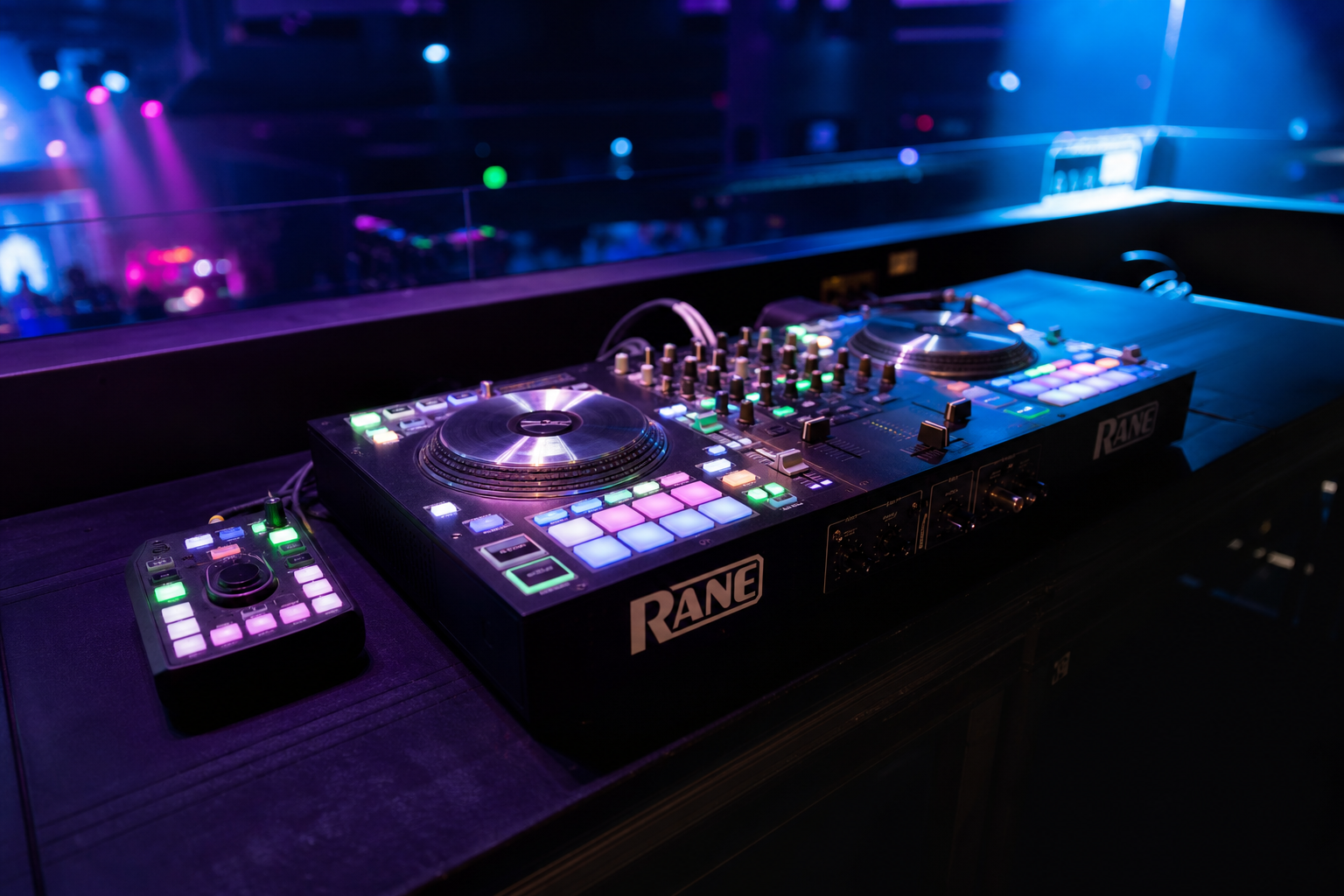
Introduction to NeoDeck and Rane DJ Integration
As a modern DJ, the integration of powerful hardware and innovative software is crucial to deliver seamless performances. NeoDeck, with its ultra-compact design and rapid booting capabilities, offers a fantastic alternative to traditional laptops in DJ booths. When paired with Rane DJ controllers, known for their high-quality build and performance, DJs can create a robust setup that enhances their workflow and creativity. This guide will walk you through the process of setting up your NeoDeck with Rane DJ controllers, ensuring a smooth integration.
Pre-Setup Considerations
Before diving into the setup, it’s essential to ensure all equipment is ready for integration. Here’s what you need to check:
- NeoDeck Device: Ensure your NeoDeck is fully charged and updated with the latest firmware.
- Rane DJ Controller: Verify that your Rane controller is in good working condition, with all necessary cables available.
- USB-C Compatibility: NeoDeck features USB-C connectivity, so ensure you have the appropriate cables and adapters if required.
- Space and Environment: Arrange your DJ booth space to comfortably accommodate the NeoDeck and Rane controller for easy access and operation.
Connecting NeoDeck with Rane DJ Controllers
Now that preparations are complete, follow these steps to connect your NeoDeck to a Rane DJ controller:
- Power On: Start by powering on your NeoDeck. Its rapid boot feature ensures you’re ready to go in under 8 seconds.
- Physical Connection: Use the USB-C cable to connect the NeoDeck to your Rane controller. Ensure the connection is secure to prevent any disconnections during performances.
- Audio Configuration: NeoDeck comes with a built-in professional audio interface. Connect the audio outputs (Master and Booth/Monitor) to your sound system using appropriate cables.
- Software Recognition: NeoDeck’s custom Linux-based OS should automatically recognize the Rane controller. If not, consult the NeoDeck support site for driver updates.
Configuring the Software Interface
Once connected, you’ll need to configure the DJ software to work optimally with your setup:
- Launch DJ Software: NeoDeck boots directly into the pre-loaded DJ software. Familiarize yourself with its interface if you haven’t already.
- Mapping Controls: Check that all controls on the Rane DJ controller are correctly mapped within the software. Manually map any that are not automatically recognized.
- Audio Settings: Navigate to the audio settings in the software, ensuring the NeoDeck’s audio interface is selected for both input and output.
Troubleshooting Common Issues
Despite careful setup, you may encounter some common issues. Here’s how to troubleshoot them:
- Connection Issues: If the Rane controller isn’t recognized, check the USB-C connection and try a different port if necessary.
- Audio Problems: Ensure the audio cables are securely connected, and check the mixer settings on your sound system.
- Software Glitches: Restart the NeoDeck and the DJ software to resolve any temporary software glitches.
Optimizing Your Performance Setup
Maximize your DJ performance by optimizing your setup further:
- Customizing Software Layout: Adjust the software layout on NeoDeck’s 10" IPS touchscreen to suit your performance style.
- Regular Updates: Regularly check for firmware and software updates to keep your system running smoothly.
- Practice: Familiarize yourself with the NeoDeck and Rane controller integration through regular practice sessions.
Conclusion
Setting up your NeoDeck with a Rane DJ controller is a straightforward process that enhances your DJ booth with cutting-edge technology and performance capabilities. By following the steps outlined in this guide, you can ensure a seamless integration, allowing you to focus on what matters most: delivering an unforgettable musical experience. For more details and support, visit the NeoDeck website at neodeck.store.
Ready to upgrade your DJ setup?
Join thousands of DJs on the waitlist for NeoDeck — the purpose-built DJ computer.
Get Early Access